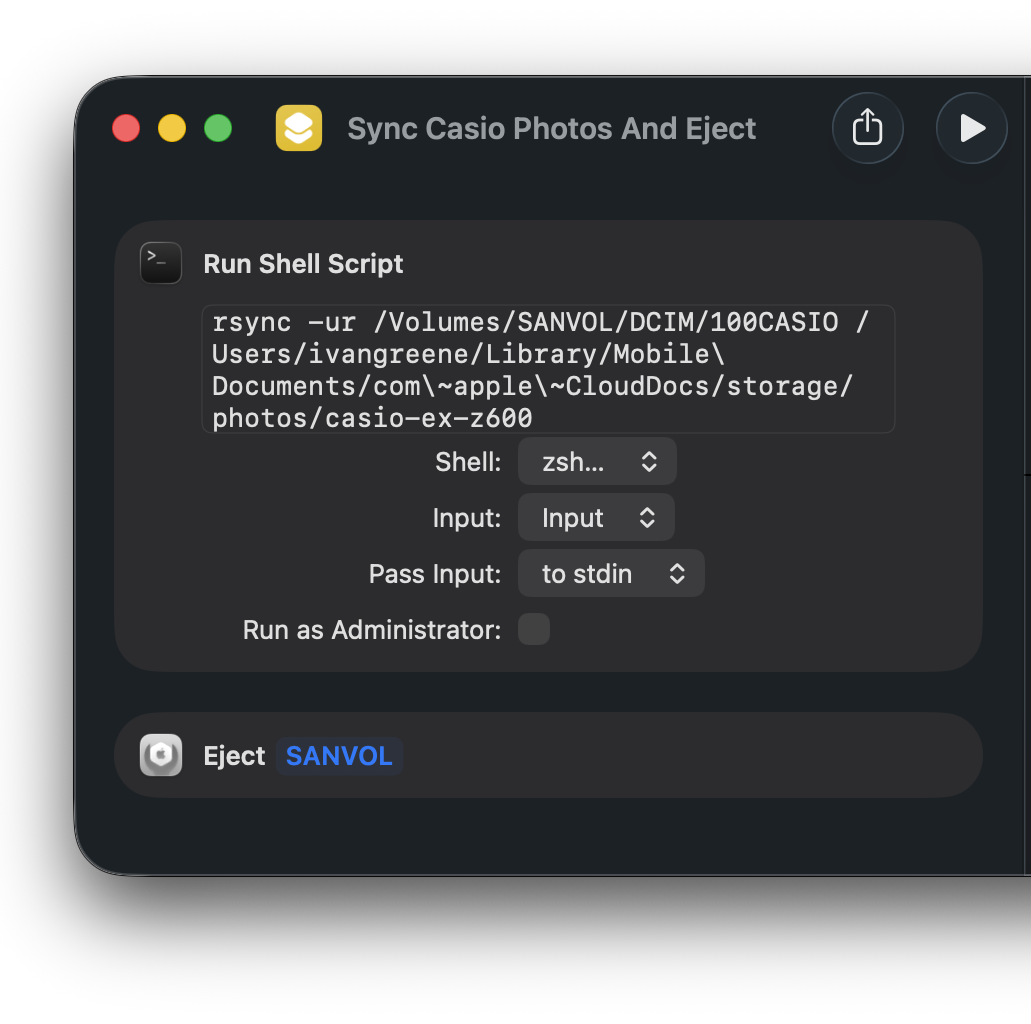
macOS Shortcuts turns out to be a great rsync launcher.
An example is my digital camera. When I plug in the SD card, I typically have one objective: copy the new photos onto my hard drive, and eject when finished.
The options I'm using here:
-u, --update
        Skip existing files on the destination that have a modification time newer than the source file.
iCloud does something weird with modification times (and sometimes I
do things like rotate the orientation), so the -u skips
comparisons when destination files have newer timestamps.
-r, --recursive
        If source designates a directory, synchronise the directory and the entire subtree connected at that point.  If source ends with a slash, only the subtree is
        synchronised, not the source directory itself.  If source is a file, this has no effect.
Recursively copy the directory of photos.
Selecting the 'Eject' action target must be done when the drive to be ejected is still mounted.
The steps are executed synchronously in order, so the rsync command will be finished before the Eject action runs.
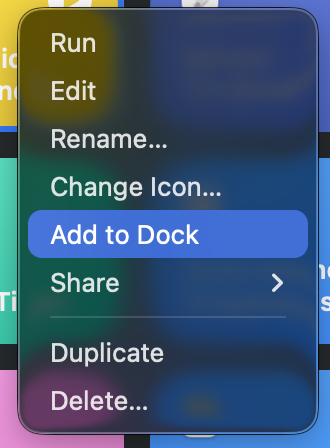
After saving, a launcher for the shortcut can be added to the dock by right clicking it:

The shortcut even has useful error messages when execution fails during shell commands:
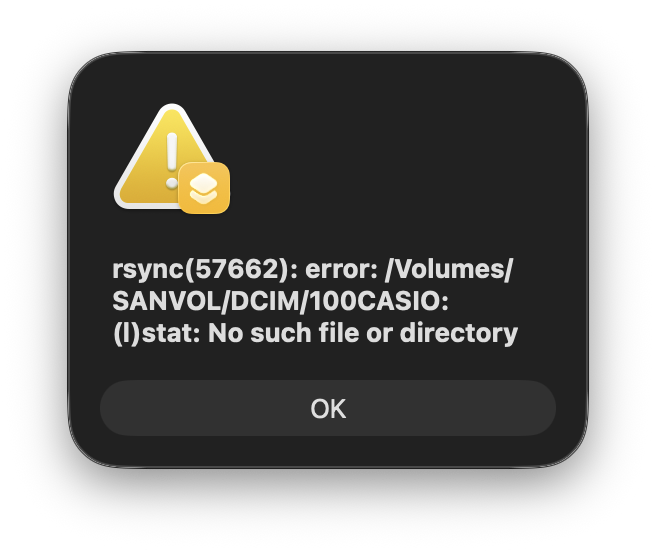
This is the output when launched without the SD card mounted.
When running, a menu-bar icon shows a loading state:

When complete, the icon shows a check mark:

After which point, I can safely physically remove the SD card.